Quantum Resources


양자The 자원Quantum 화면은Resources QuREKA에서page 제공하는is 양자where 백엔드you 목록을can 나열합니다.
제공되는check 자원에the 대한real-time 정보는status 아래와and 같습니다.
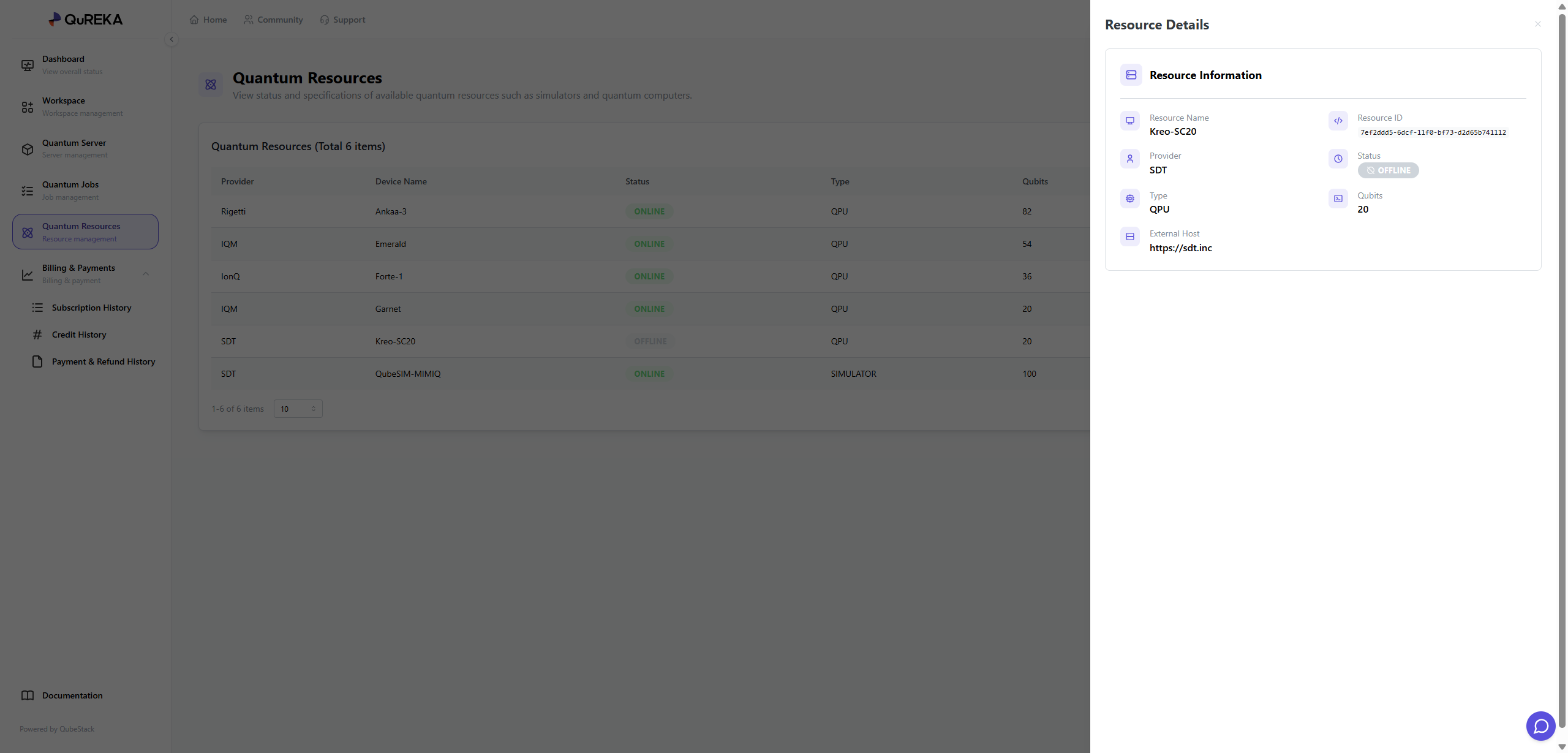
1. Quantum Resources List
Key information for all currently available quantum resources is displayed in a list format:
Provider: The supplier providing the quantum resources (e.g., Rigetti, IQM, IonQ, SDT, etc.).
Device Name: The unique name of the specific device.
Status: Indicates the current connection status of the resource.
ONLINE: The resource is in a normal state, allowing for job submission and execution.
OFFLINE: The resource is currently unavailable due to maintenance or other reasons.
Type: Distinguishes the type of resource.
QPU: Actual quantum hardware that performs computations using physical quantum elements.
SIMULATOR: 방식A virtual execution environment that uses high-performance computing (HPC) resources to mathematically calculate the results of quantum algorithms instead of using an actual quantum computer.
Qubits: 큐비트The 수total number of qubits available on the device.
Permission: Shows the current access permission status set for the resource.
2. Resource Management
Administrators (Admins) can directly control the resource access permissions visible to workspace members. These can be configured via the More (⋮) icon on the right side of the list:
Admin Only: Only users with administrator privileges can view the resource and submit jobs.
User Accessible: General workspace members can also view the resource in the list and use it to execute their jobs.
3. Resource Details
By clicking on a specific resource, a details panel appears on the right where you can find more in-depth technical information:
Resource ID: A unique ID used to identify the resource within the system.
Status: Provides a detailed view of the resource's current operational status.
External Host: Information regarding the external address where the resource is hosted.